Storage Buying Guide
Storage Buying Guide
Storage is where your files actually live: photos, documents, game libraries, backups, and the operating system that runs your computer. The right device depends less on having the biggest number on the box and more on matching the type, capacity, and connection to how you plan to use it. This guide covers what the category includes and how to choose without overspending.
What this category covers
The Storage category groups devices that hold data, plus the accessories that connect them. In practice that means a few distinct things, and they are not interchangeable. A drive you install inside a laptop is a different purchase from one you carry in a bag, and a tiny memory card has little in common with a desktop hard drive. Read the product type before the price.
Common types
- External SSDs and drive enclosures. Portable solid-state drives, or empty enclosures (caddies) you fit your own drive into. Best for fast, durable backups and moving large files between machines over USB.
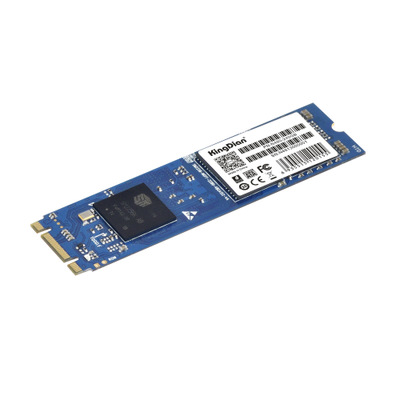
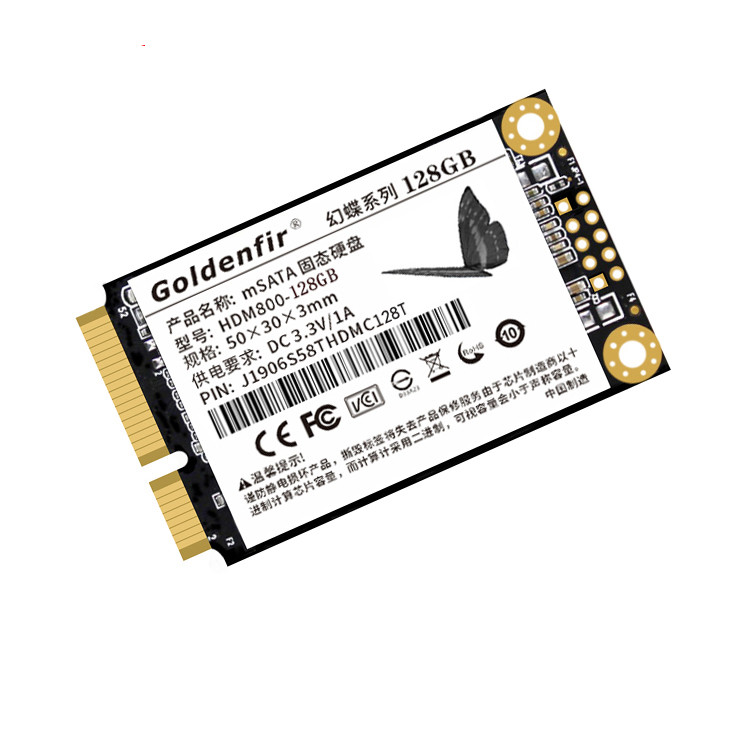
- Internal SSDs. Drives that go inside a computer, in either the older 2.5-inch SATA form factor or the smaller M.2 stick. Used to upgrade a slow laptop or add space to a desktop.
- USB flash drives and security dongles. Pocket-sized drives for quick transfers, and specialized USB keys used for software licensing or encryption rather than general file storage.
- Memory cards. SD and microSD cards for phones, cameras, and handheld consoles.
What to look for
- Form factor and fit. For an internal upgrade, confirm your device takes 2.5-inch SATA or M.2, and which M.2 type. The wrong shape simply will not connect.
- Connector and speed. Check the port (USB-A, USB-C) and the rated transfer speed, often quoted in Gbps. A fast drive on a slow port runs at the slower of the two.
- Capacity you will realistically use. Buy for the next year or two, not forever. Usable space is always a little less than the labeled figure.
- What is actually in the box. An enclosure usually does not include the drive itself. A "dongle" or security key is typically a license tool, not bulk storage. Read the title and description carefully.
Practical tips
- Keep a second copy. No single drive is a backup. Anything you cannot afford to lose should exist in at least two places.
- Match the cable and adapters. If your laptop is USB-C only and the drive ships with USB-A, plan for an adapter or a different cable.
- SSD versus hard drive. Solid-state drives are faster and more shock-resistant with no moving parts; spinning hard drives still offer more space per dollar at large sizes.
- Compare specs, not adjectives. Words like "high-speed" mean little on their own. Look for the stated capacity, interface, and speed figures.
If you are upgrading a computer, start from what it physically accepts, then pick capacity and speed. If you just need to move or back up files, a reliable external drive or flash drive with the right connector is usually all you need. When a listing is unclear about what is included, treat that as a reason to ask before you buy.